An HDMI “handshake” is not one message. It is a practical name for several connection events: the source detects a display, reads its capabilities, selects a video format, establishes a usable link and—when protected content requires it—authenticates HDCP. A failure at different points can produce the same “No Signal” label, so replacing the cable first is often guesswork.
The handshake is a chain of separate decisions
First, the display or intermediary must be present on the selected input. The source then obtains capability information from EDID. Microsoft describes EDID as metadata a monitor uses to communicate capabilities, including timing information, and notes that incorrect EDID data can lead to incorrect display modes. A source can use that information to choose a resolution, refresh rate, color format and other parameters it believes the path can accept.
The source still has to transmit that format reliably. An AV receiver, switch, splitter, capture device or adapter may read and present its own combined capability view, so the effective path is not always the same as a direct source-to-display connection. Finally, protected playback may start an HDCP authentication process. Menus can therefore appear normally while a protected movie or app produces a black screen.
Match the symptom to the likely stage
| Observed symptom | First boundary to test | What it does not prove |
|---|---|---|
| No image from power-on, including setup menus | Input selection, source output, display detection, direct path and basic timing. | That the cable alone is defective. |
| Image at a lower resolution but not the target mode | Shared timing support, intermediary capability handling and link margin at the target format. | That the display or cable supports every mode printed on another device. |
| Menus work, protected video turns black or shows an error | HDCP support and authentication across every active device. | That unprotected video transport is failing. |
| Image drops after warm-up or when equipment moves | Connector seating, cable bend/strain, device temperature and link margin. | That an EDID reset will fix a physical intermittent fault. |
| Failure appears only through a receiver or switch | Test the source and display directly, then restore one intermediary at a time. | That either end device is incompatible in a direct path. |
EDID problems are capability problems
EDID tells the source what the sink reports; it does not test the cable and does not guarantee that an intermediary has merged capabilities correctly. A stale connection state, a receiver that reports a reduced set of modes, or a display input configured differently from another input can change the selected format. This is why a lower-resolution safe mode may work even when the preferred mode fails.
Record the exact working and failing modes rather than writing only “4K does not work.” Resolution, refresh rate, chroma or color format, bit depth and HDR state can change transport demand. If one variable is changed at a time, the failure boundary becomes visible.
HDCP problems are content-path problems
HDCP is a content-protection system, not a picture-quality upgrade. The official HDCP 2.2-on-HDMI specification defines authentication between transmitters, receivers and repeaters. In a real installation, every active device in the protected path must participate in the required way. A receiver or splitter can therefore be relevant even when the same source and display work directly.
A content-specific black screen should be reproduced with the same app, title and playback state. Do not use an unprotected desktop image as proof that HDCP is healthy, and do not describe every content error as HDCP without confirming the source’s error message and path.
Signal timing and link margin come after capability selection
A source may correctly learn that a mode exists but still fail to transport it with enough margin. Higher-bandwidth modes reduce tolerance for excessive insertion loss, weak terminations, damaged connectors or a marginal intermediary. The cable does not “add” a resolution; it carries the signal selected by the source and accepted by the sink.
For physical inspection and a controlled cable substitution, use the existing HDMI cable testing guide. A pass at one mode or cable length is limited to that tested path. It does not certify all formats, devices or future installations.
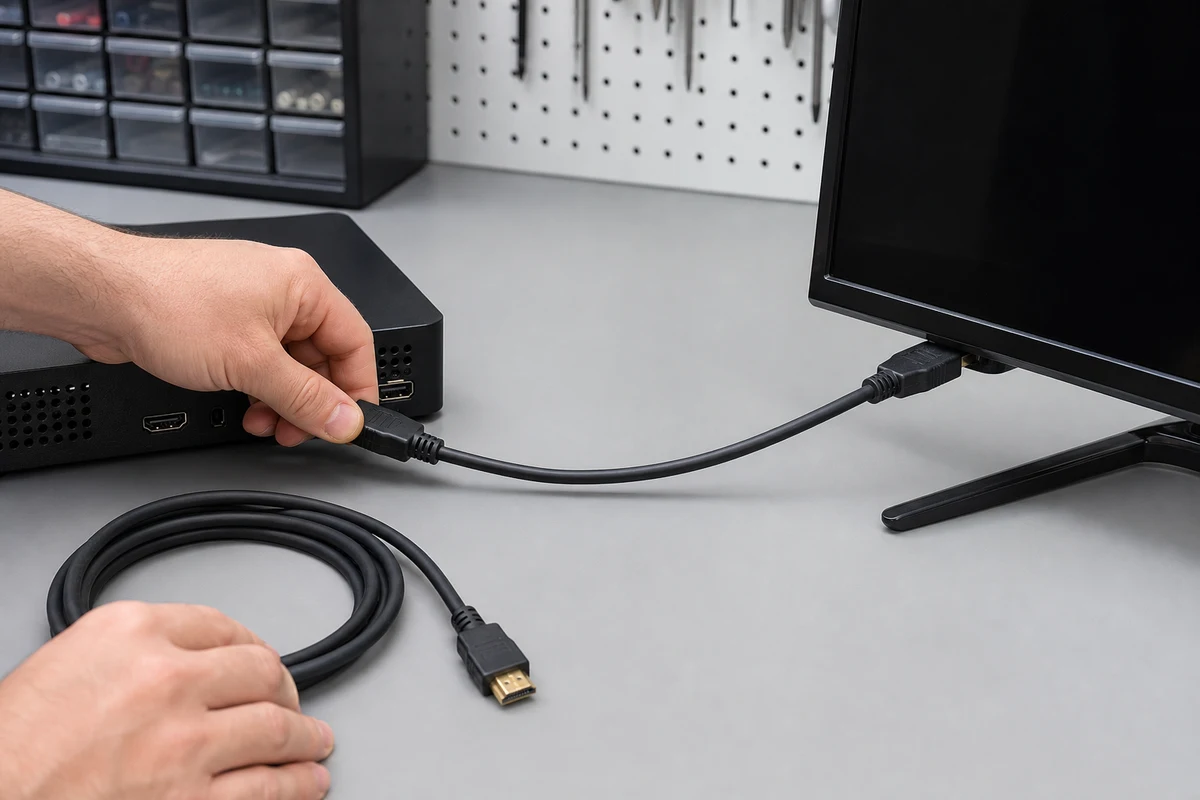
A one-variable HDMI isolation sequence
- Freeze the symptom. Record the source, display input, intermediary devices, failing content and exact output mode.
- Confirm the selected input and source output. Test a source menu or known unprotected image before drawing conclusions from one app.
- Build a direct baseline. Connect the source directly to the display with the shortest known-good path available.
- Start with a conservative format. If it works, increase resolution, refresh, HDR or color settings one variable at a time.
- Compare one cable. Keep both devices, ports and mode fixed. Inspect seating and avoid sharp bends or side load.
- Restore intermediaries individually. Add the receiver, switch, adapter or capture device one at a time and repeat the same test.
- Separate protected playback. If menus work but protected content fails, check the required HDCP path and firmware support instead of continuing random cable swaps.
- Retest from a cold start. Power sequencing can expose a state problem, but a reboot alone does not identify its cause.
Common mistakes that hide the real fault
- Changing the cable, port, receiver setting and output mode at the same time.
- Assuming “No Signal” names the failed component.
- Calling a protected-content error a bandwidth problem without a direct-path check.
- Using one low-bandwidth pass as proof that every advertised mode will work.
- Forcing a display mode without recording what EDID reported and what the intermediary changed.
- Buying a replacement before defining connector type, length and required video mode.
Define the path before choosing a cable
Write down the source, display, intermediaries, target resolution and refresh rate, HDR/color requirements, route length and installation constraints. Then review the HDMI and USB-C video cable category as a product route, not as proof that every cable supports every mode. The useful acceptance result is a repeatable pass in the complete intended path.